Glintscout finds local businesses by niche and city and checks every email it finds. With the Instantly integration, a finished list goes straight into one of your own Instantly campaigns: no CSV to clean, no import.
Built for cold email and lead generation agencies that build lists of local businesses for their clients, and for any team that already sends from Instantly.
A recorded walkthrough of Glintscout’s own screens, with sample data and a simulated Instantly workspace: it does not show a live call to Instantly’s API. A finished project, the campaign picked, valid contacts chosen, sent.
Set it up in two minutes
1Create an API key in Instantly. In Instantly, open Settings > Integrations > API Keys and create a key with three permissions: read campaigns, create leads and read the workspace name. A key with every permission works too.
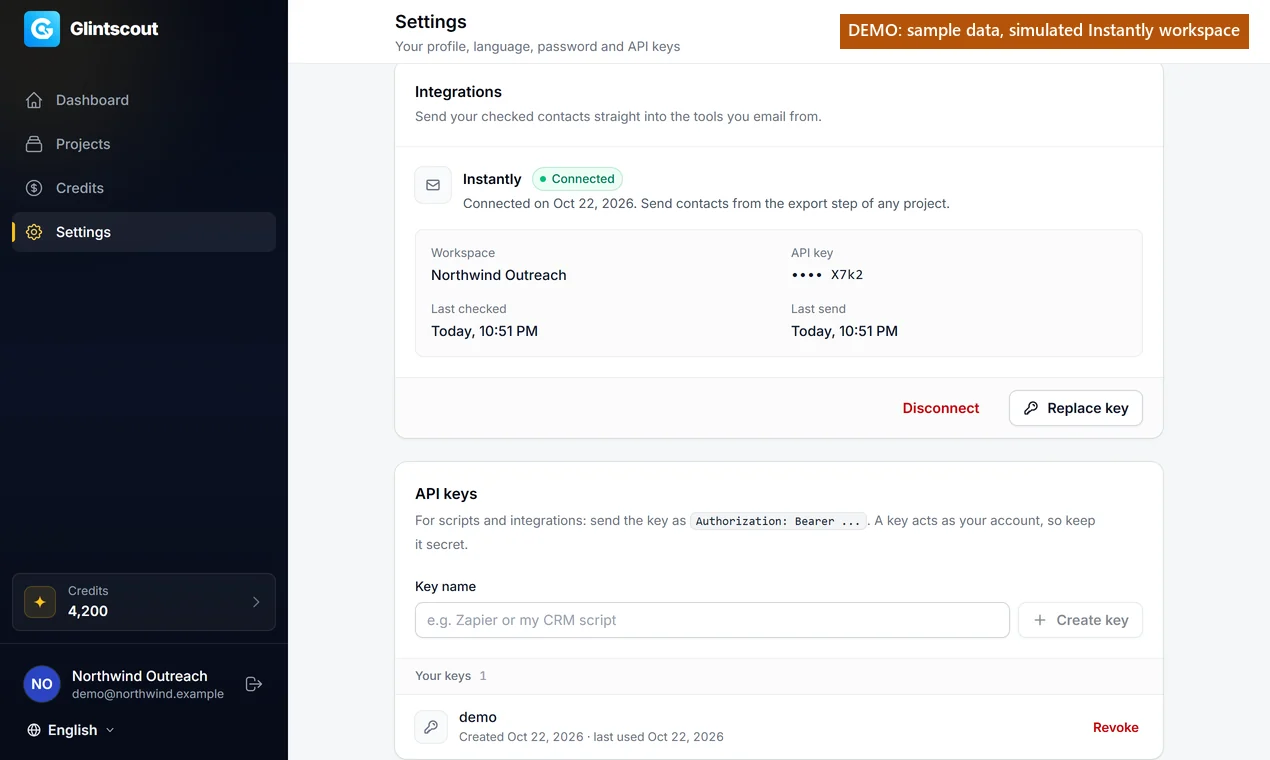
2Connect it in Glintscout. Open Settings, then Integrations, paste the key and press Connect. The key is stored encrypted; only its last four characters are shown after that.
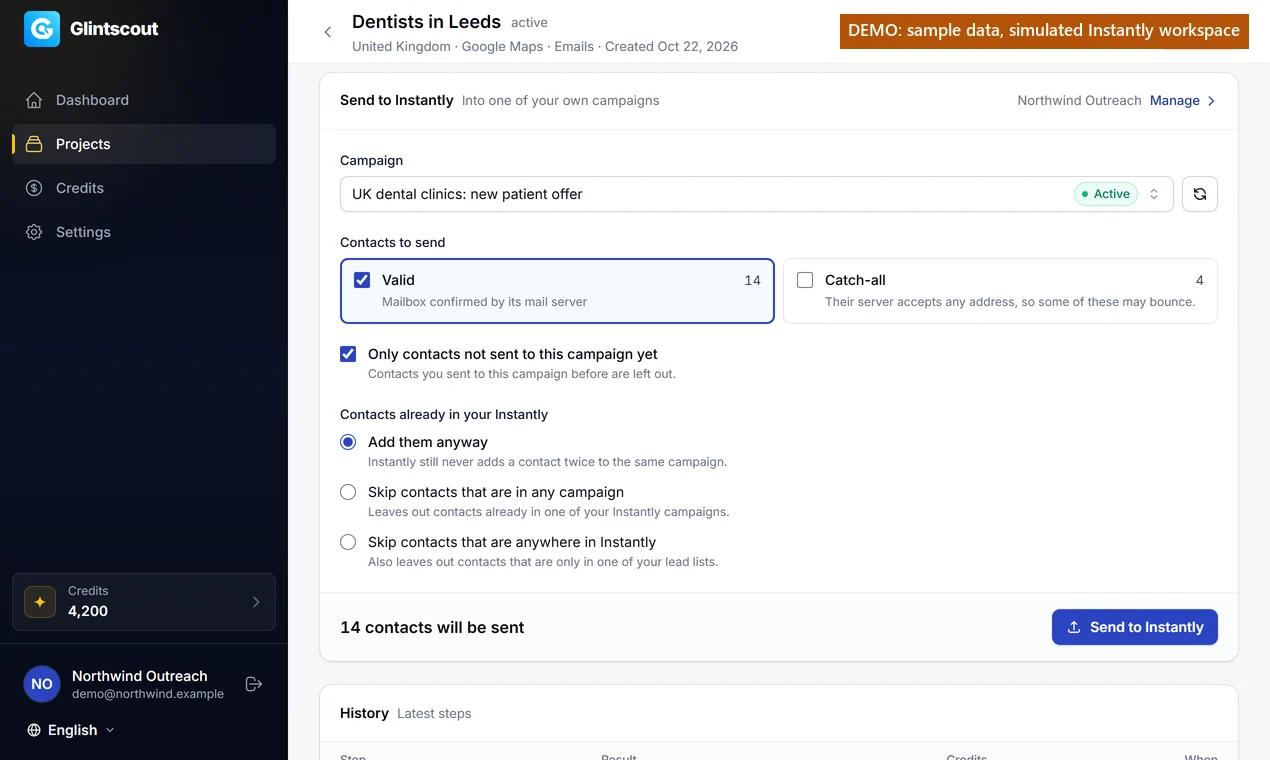
3Send from any project. On a project's export step, choose the campaign, choose which contacts go (valid, catch-all or both) and press Send to Instantly. The send runs on our side, so you can close the page.
Settings, Integrations: Instantly connected with a key ending in X7k2, its workspace and the last send
What each lead carries
Each lead arrives with its email and, where we have them, these fields, ready for your templates:
Company name, website and phone number
First name, last name and job title, when a person was found
Custom variables: city, state, country, niche, industry, company type, domain, LinkedIn and department where known, the source the business was found in, and its verification result (valid or catch-all)
You choose which emails go
Valid. The recipient's mail server confirmed the mailbox. Checked without sending an email.
Catch-all. The server accepts every address, so the mailbox cannot be confirmed, and some of these bounce. Many senders run them as a separate campaign, so they are a separate choice.
Never sent. Unknown results (the server gave no answer) and invalid addresses cannot be sent to Instantly at all.
The export step: the campaign, valid and catch-all as separate choices, and how many contacts will be sent
What the integration takes care of
A contact you already sent to a campaign is left out of the next send to it. You can also skip contacts that are in any of your Instantly campaigns, or anywhere in your workspace.
Addresses on your Instantly blocklist are skipped by Instantly.
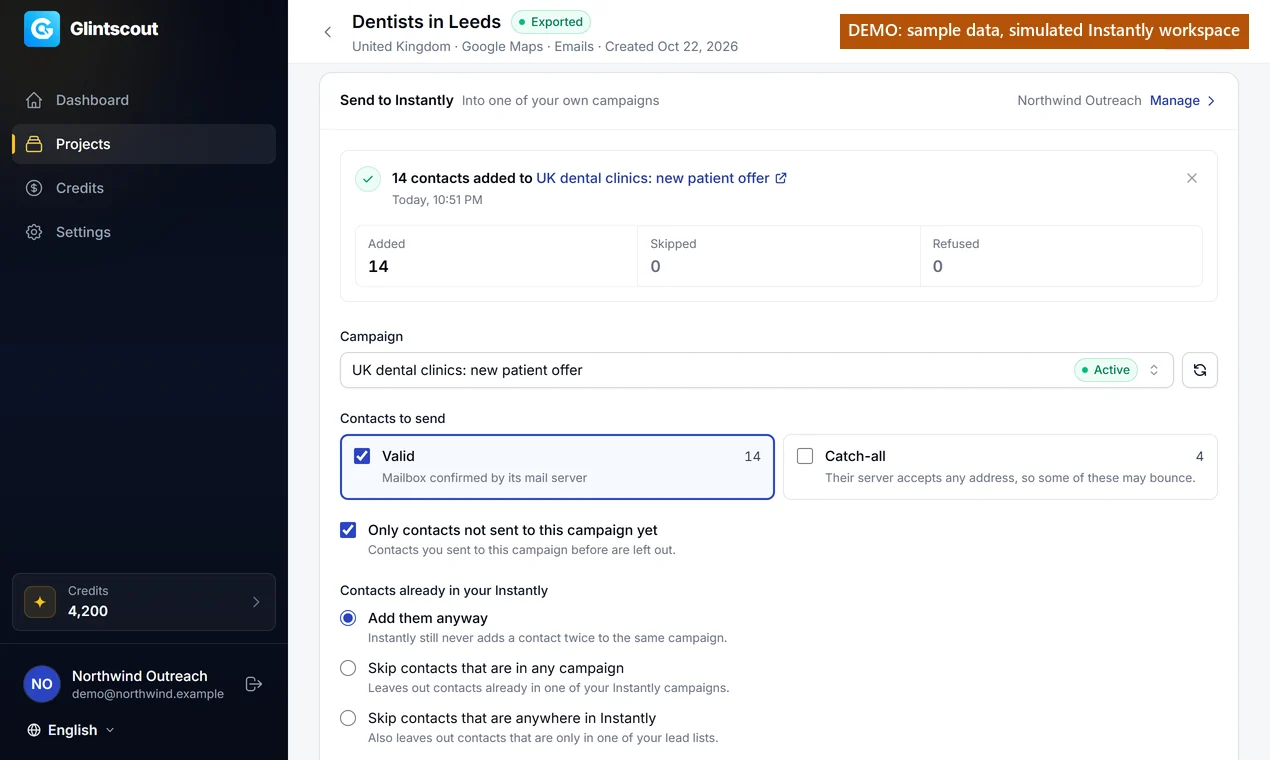
After each send you see how many leads were added, skipped and why, and refused.
A paused or draft campaign is flagged before you send: its leads wait until you start it.
Where the law of the business's country needs prior consent for email marketing (Germany, for example), nothing goes to Instantly; in countries where the email steps are off, a project collects phone numbers.
After a send: how many leads were added, skipped and refused, with a link to the campaign
Screenshots with sample data on .example domains and a simulated Instantly workspace ("Northwind Outreach"): no real business, account or live Instantly API call is shown.
What it costs
Sending to Instantly costs no credits. The leads cost what any project costs: 1 credit per business found and 6 credits per email that passes the check (valid, or catch-all marked risky). Send to Instantly is part of the Ridge and Summit plans, and every plan can be tried for 7 days for $1.
Yes. Glintscout adds leads to your own campaigns with your own Instantly API key, so you need an Instantly plan that includes API access.
Does Glintscout send any email?
No. Glintscout only adds leads to the campaign you choose. Instantly sends them, from your mailboxes, on your schedule.
Where do the leads come from?
From Google Maps in any country, Yellow Pages in the United States, and the Glintscout database for the United Kingdom and Sweden. Emails come from each business's own website, are kept only on the business's own domain, and are checked before they can be sent.
How many leads can one send hold?
Up to 10,000. Send again for the rest; contacts already sent to that campaign are left out.
How do I disconnect?
In Settings, under Integrations. The saved key is deleted; leads already sent stay in your campaigns.
Instantly is a trademark of its owner. Glintscout connects to it with your own API key.
How to send a Glintscout list to Instantly
Connect your own Instantly account, select contacts in Glintscout and choose the campaign that should receive them. Here is what to check before and after the transfer.
Read moreRead less
Which account does each job?
Use Glintscout to find businesses and check their email addresses. Use Instantly to manage the campaign in your own workspace. Before transferring a list for a client, check which workspace you have connected and which campaign belongs to that client. A useful name such as the client, country and offer is easier to recognise than another campaign called Test. Agree who checks the list and who checks the campaign settings. In a small team that may be one person; an agency may have a researcher preparing contacts for someone else.
Glintscout supplies the selected contacts; Instantly holds the destination campaign.
How do I connect the right workspace?
Create an API key in the Instantly settings using the steps above, then connect it in Glintscout’s settings. Use the permissions requested by the integration and keep the key private. Check the workspace and available campaigns before your first transfer. This is especially helpful if you have access to several client accounts. When a key stops working, update the connection in the settings and confirm that the expected campaigns appear again. You do not need to put the key into the contact file or share it with the colleague reviewing the list.
Connect the Instantly workspace that contains your campaign.
Which contacts should I select?
Choose companies that fit the campaign’s offer. For salon booking software, check whether the businesses actually offer appointments, rather than transferring every result from a broad beauty category. Read a few service pages and remove businesses outside your market. Compare the list with customers and active conversations in your own records before transfer. Keep the selected companies in a clearly named project so the campaign owner knows what the list contains. The city and category explain how you found a company; its website helps you decide whether it belongs in this campaign.
Select contacts whose businesses match the campaign’s offer.
Can I transfer catch-all addresses?
The integration accepts valid and catch-all contacts under the rules above. Catch-all addresses are marked risky: the receiving server accepts addresses without confirming each individual mailbox. Decide whether to include them before the transfer. If a colleague runs the campaign, make that choice clear so they do not mistake the selection for a list of confirmed mailboxes. Invalid and unknown results are not eligible for this transfer. Check the selected statuses instead of trying to increase the total by changing labels. You can review a smaller valid-only selection first when that suits your campaign.
Choose whether the transfer includes valid contacts only or catch-all results too.
Which fields should I check in Instantly?
Business name, website and city help you recognise the contact after transfer. Review the field list above and inspect a few contacts in the destination campaign before adding a larger group. Some companies will have less information than others. If your message uses a city or company-name field, check what happens when it is empty or unusually formatted. Avoid writing a sentence that depends on a field every company may not have. This check is useful whether one person runs the campaign or another teammate receives the list you prepared.
Check company and location fields in the destination campaign.
Before and after: CSV import or direct transfer?
With a CSV, you download the selected rows, open the destination tool and map the columns during import. With the integration, you select contacts in Glintscout and send them to the chosen Instantly campaign. You still review the list and campaign, but you no longer need the CSV handover for that transfer. Keep CSV as an option when another person must approve the file or you need to prepare the data in a different tool first. Choose the route that fits the job; both start with selecting the companies you want to use.
Direct transfer replaces the CSV export-and-import step.
What should I check before clicking send?
Confirm the workspace and campaign name, then check that the campaign is intended for this audience. Similar names can refer to different clients or older tests. Review the campaign’s sequence and sending setup in Instantly with the person who manages it. Adding contacts is not a substitute for those checks. For an agency, put the client and market in the project notes you share with that person. They should be able to tell where the contacts came from and which offer they were selected for without reopening your entire research process.
Confirm the workspace, audience and campaign before transfer.
How do I know the transfer worked?
Read the result shown after the transfer, then inspect the contacts in the selected Instantly campaign. Compare them with the group you chose in Glintscout. If something needs attention, use the reported result to investigate before repeating the whole transfer. Keep the project name, campaign name and time of the attempt available when asking for help; keep API keys out of the message. For client work, let the campaign owner know which project supplied the contacts. That gives them a useful starting point if they later need to check a company or correct a field.
Check the transfer result and the contacts in the selected campaign.
What does the integration change about costs?
Glintscout charges for company and email results according to the current credit rates. Your Instantly account and sending setup are separate. Compare those costs with the tools you already use, and check the integration access included in your Glintscout plan. Direct transfer is useful when the list is ready for the campaign. A free CSV export may suit a job that still needs a colleague’s approval or additional preparation elsewhere. Neither choice adds more information to the company record by itself, so decide based on how the list needs to reach your campaign.
Research charges and the Instantly subscription are separate.
What should I change for the next list?
Read the replies and the campaign owner’s notes before repeating the same search. If the businesses do not offer the service you expected, use a more specific category. If the companies fit but sit outside your territory, change the city selection. Keep the useful search choices for the next project instead of simply increasing the number of contacts. If you disconnect Instantly later, contacts already transferred remain in Instantly. Manage those records in that account and update access when a teammate or client relationship changes. Disconnecting the integration does not remove a previously transferred list.
Use campaign feedback to choose the next category and city.